
By C.T.S.CompuPro Inc.
Before stepping away for the holiday break, a brief check of your core systems can ensure your business remains fully protected and supported while key staff are away. A quick review today helps prevent avoidable disruptions during one of the busiest times of the year, giving your team complete peace of mind.
Across Johnson County—whether you're managing a Burleson service business, a Cleburne professional office, or a Joshua manufacturing facility—holiday readiness starts with asking one key question: What needs to keep running seamlessly while team members are off?
Essential areas to consider include:
- Core Applications: Scheduling and accounting software
- Client Data: Customer records and communication channels
- Operational Tools: Remote access and production systems
Leverage this holiday IT checklist to audit your setup, clarify emergency responsibilities, and safeguard your operations ahead of Thanksgiving and year-end closures.
1. Test your backups before you need them
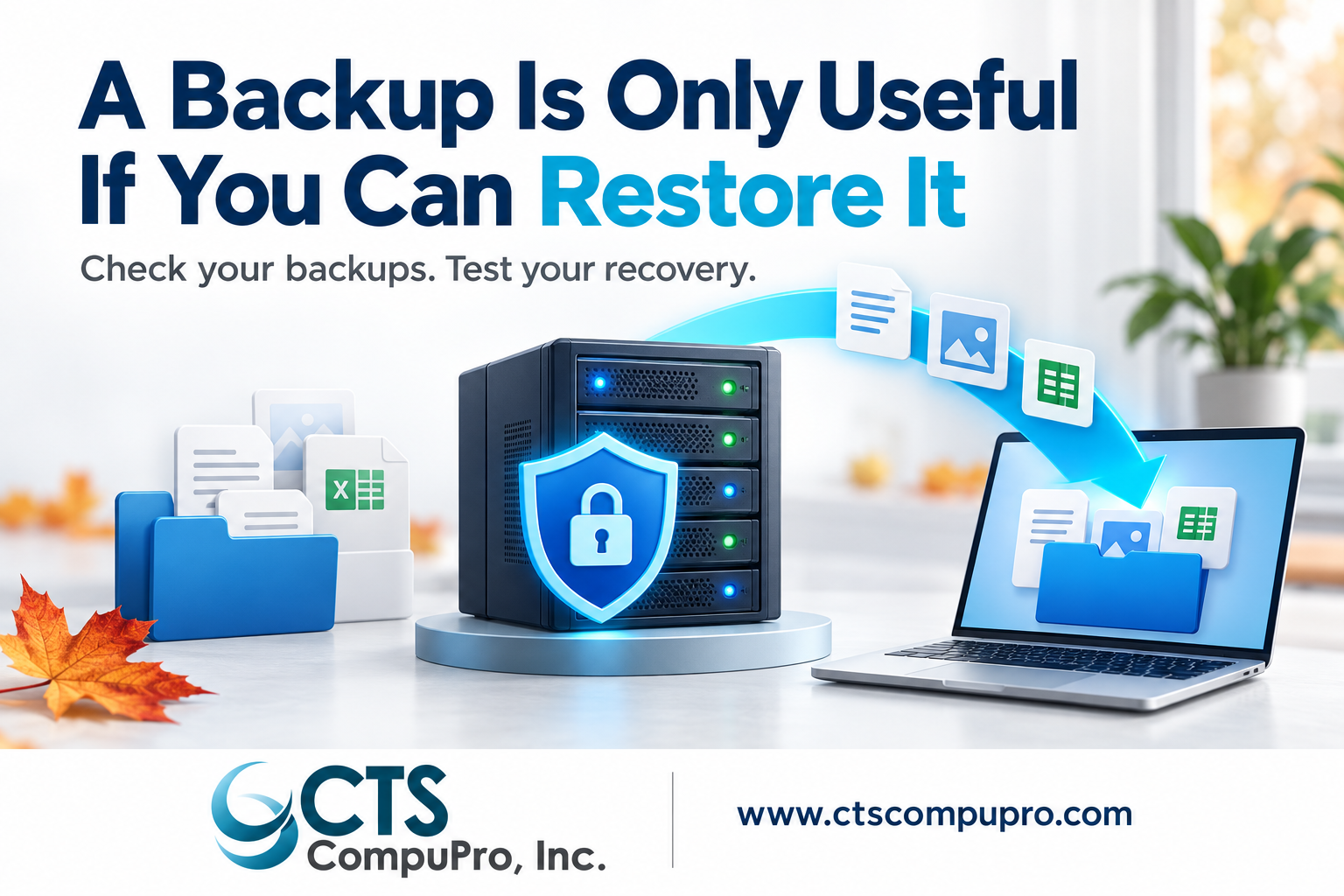
Ask your IT provider to confirm that recent backups have been completed successfully and to demonstrate a safe restore of representative business data. A green backup report is a good start, but it doesn't guarantee a smooth recovery when an actual crisis hits. Security agencies like CISA recommend protecting backups and regularly testing both their availability and integrity [1].
Make sure your backup includes the systems your business depends on daily—such as email, shared files, accounting data, and core applications. Store immutable or protected backup copies that an attacker cannot easily modify or delete using standard network credentials [1].
Finally, define your Recovery Time Objective (RTO) and Recovery Point Objective (RPO): write down how much recent data your business could afford to lose and how long key systems can be offline. These parameters help your provider verify whether your recovery plan is realistic.
2. Confirm that remote access is secure and usable
Have employees test their approved remote access before leaving for the break. Confirm that they can securely reach required files and applications from a managed, fully updated device. Revoke outdated user permissions and have your provider remove any unused or unapproved remote access tools. [2]
Enforce Multi-Factor Authentication (MFA) across all email accounts, remote access portals, and administrator accounts. Where possible, adopt phishing-resistant MFA options [3]. Remind staff to never share passwords or approve unexpected MFA sign-in prompts simply to clear a pop-up.
3. Give employees a simple holiday scam reminder
Seasonal volume makes suspicious requests easy to hide. Remind your team to pause and verify before acting on an unexpected invoice, shipping notifications, password resets, or urgent requests claiming to come from executives. CISA frequently highlights phishing and fraudulent shopping messages in its holiday safety guidance. [4]
Establish a clear payment verification policy: if a vendor email updated bank details, staff must call a verified contact using a phone number already on file-never use the contact details provided in the suspicious message. Ensure approval workflows remain strictly enforced even when employees are covering for vacationing colleagues.
Give staff one clear frictionless way to report suspicious messages. They should know exactly whom to contact and what steps to take if they accidentally clicked a link or entered credentials. Encourage prompt reporting without fear of blame so your IT team can investigate immediately.
4. Schedule updates with time to verify them
Have your IT provider review operating systems, applications, firewalls, and remote access software for critical security updates. Prioritize known exploited vulnerabilities and internet facing systems. Coordinate installation, restart requirements, and any necessary testing.
Avoid leaving maintenance windows for the absolute last hour before closing. Allow sufficient runway to confirm that scheduling, printing, accounting, and production workflows function properly after updates. [1] Coordinate patch deployment, system restarts, and post-updating testing well in advance.
5. Know who will receive and respond to alerts
Confirm who is responsible for monitoring alerts regarding security events, backup failures, and system outages while your office is closed. Clarify the exact protocol: what happens when an alert triggers, who conducts the initial investigation, and how your internal contact will be notified.
Document your support coverage, including holiday hours and how to escalate issues after hours. A security tool or monitoring dashboard does not guarantee that someone is available to respond around the clock.
If you partner with a Managed Service Provider (MSP) or Managed Security Service Provider (MSSP), review your Service Level Agreement (SLA). Ensure designated on-call personnel understand your escalation path and know how to request emergency assistance.
6. Keep an emergency contact plan outside your email
Create a concise emergency contact list featuring your IT provider, key business decision-makers, internet service provider (ISP), and critical software vendors. Keep an offline or secure out-of-band copy accessible even if primary company systems or email go offline.
Specify who has authority to approve emergency recovery work and who will handle internal and client communications during an incident. Store privileged recovery credentials securely in your password manager—an emergency contact sheet should never contain plain-text passwords.
7. Prepare for a power or internet interruption
Identify which operations will stall if an office location loses utility power or internet connectivity. Ask your IT provider to inspect battery backup (UPS) systems, test generator switchovers if applicable, and document safe shutdown/restart procedures for key hardware.
If your facility relies on redundant or failover internet, evaluate the failover mechanism before the break to ensure it works seamlessly. For multi-location companies, verifying which branch functions depends on hardware hosted at the main office—a remote office may remain open while the primary server room supporting it is unattended.
Your Final Checklist Before Closing
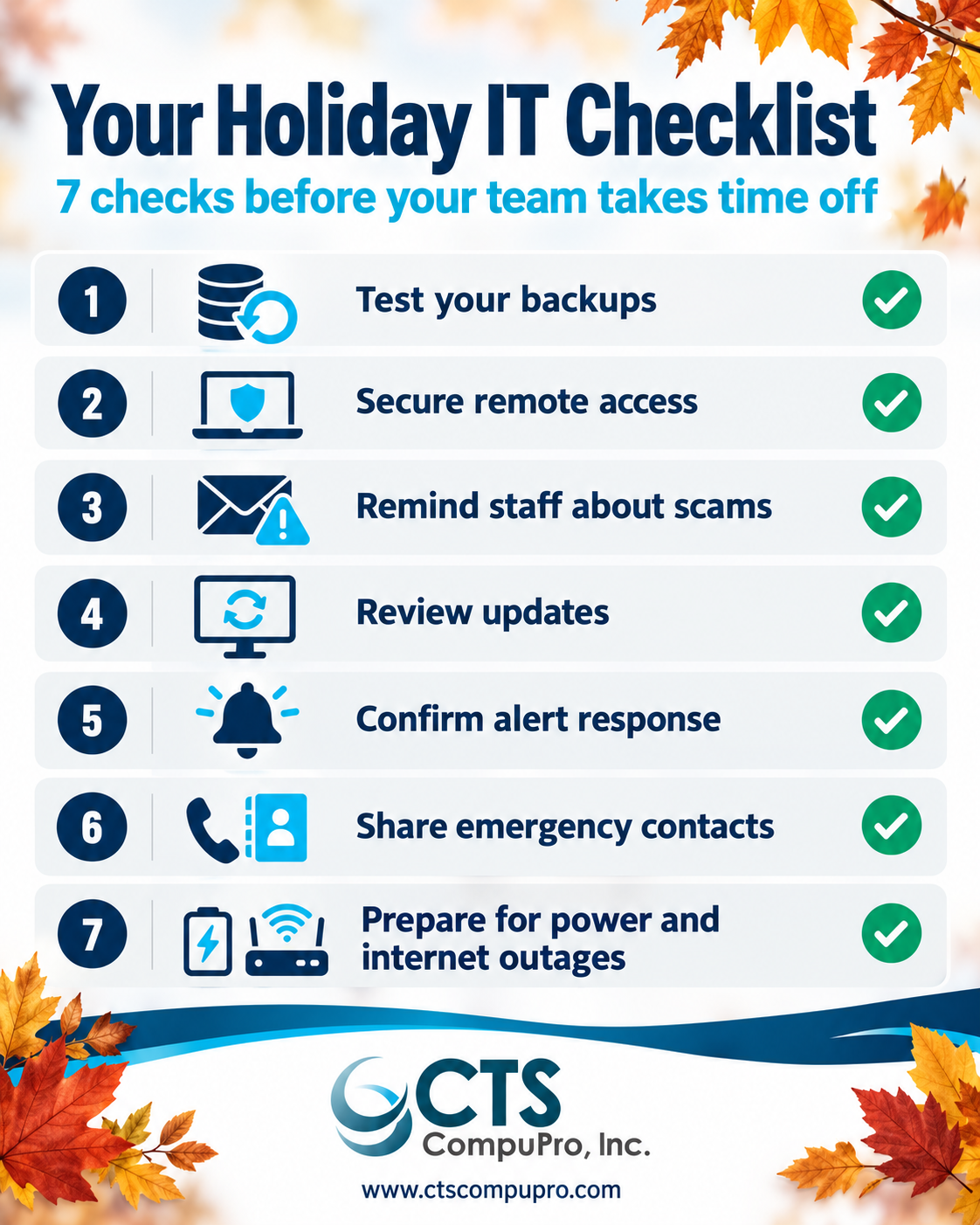
Assign a single owner to each action item below and confirm completion before your last business day:
- [ ] Backups: Recent backups verified and a representative data restore tested.
- [ ] Remote Access: Approved remote setups tested and MFA enforced on all entry points.
- [ ] Security Awareness: Employees reminded of payment verification steps and reporting paths.
- [ ] Patching & Maintenance: Required security updates applied and essential workflows verified.
- [ ] Monitoring & Support: Alert escalation protocols and holiday support coverage confirmed.
- [ ] Emergency Preparedness: Out-of-band contact lists and authorization roles documented.
- [ ] Infrastructure: UPS batteries, failover connections, and power interruption steps reviewed.
Want Help Running Through This Checklist?
Spotting potential vulnerabilities before a closure requires a trained eye. C.T.S. CompuPro helps small and mid-sized businesses across the greater Fort Worth area audit their backup integrity, remote access tools, and alert response plans.
Request a Free IT Assessment, and our team will perform a comprehensive review of your setup to make sure you are 100% prepared for year-end closures.
Schedule Free IT AssessmentReferences for the article
[1] CISA — StopRansomware Guide
[2] CISA — Guide to Securing Remote Access Software
[3] CISA — Require Multifactor Authentication
[4] CISA — Holiday Shopping Phishing and Malware Scams
Call (817) 235-5459